
Your first session
You do not need to master the whole game. Take one nearby territory, develop your home base and give yourself a clear next move.
- Open Play, sign in or create a game account, and choose an open multiplayer world.
- Establish your nation: choose its name, country and preferred service — Army, Air Force or Navy.
- Follow the next-objective button near the top of the map. New commanders start with an advance into nearby territory.
- Tap one of your ground formations, then tap an eligible nearby territory. Read the route and battle forecast, review the order and confirm when ready.
- Let the journey and battle finish. Open the result to see the outcome and any losses.
- Enter your headquarters, build the Barracks & academy, then recruit Infantry. Review the next promotion requirements to choose your first research programme.
A good five-minute session
Look at what finished while you were away. Restore units that need ammunition or fuel. Choose one aim — Expand, Strengthen or Help allies — and set a useful order in motion. Check alliance chat before committing to a shared plan.
Prefer to explore?
The opening guide can be hidden with “I know the basics”. You can restore it from the learning guide. Offline training is also available for practising tactics without risking your multiplayer troops.
Accounts & playing on another device
Your game account identifies you. Your nation name identifies your command in the world; the two names can be different.
- Open Your account and choose Create account for a new game login. Usernames use 3–24 letters, numbers or underscores.
- Use a password of at least 12 characters. Save the recovery code shown after registration somewhere private and safe.
- On another device, sign in with the same username and password, then choose the same world.
Already playing through ChatGPT?
Open your existing player account first, then choose Create game login. This links a username and password to your existing nation. Creating a separate account will not move your old progress.
Recovery & devices
Use Forgot your password? with your saved recovery code if you lose access. Account settings include password changes, a replacement recovery code, and sign-out controls for other devices. Never share your password or recovery code in chat.
The world & your homeland
The map is a persistent multiplayer world with several land regions separated by sea. A player can expand from a small starting homeland into a much larger command.
- Your protected capital is a permanent foothold. Losing other territory does not remove your ability to rebuild.
- Territory ownership, supply links, terrain and travel routes matter. An attractive target is only useful if you can reach and hold it.
- Strategic sites include cities, industrial centres, oilfields, supply hubs, harbours, airbases and strongholds. Inspect the site to see its actual benefit.
- Fog of war limits what you know about enemies. Scouting, aircraft, radar and allied vision reveal more information.
- The world continues to progress while you are away. Queued work and issued orders can finish without the page staying open.
Coordinating a location
Use the territory’s place name and map reference, such as “CF-S04”, when discussing it with allies. Sharing a map location in alliance chat is more precise than describing where it is on your screen.
Same account, same world
Each world is its own campaign. If you cannot find your nation after signing in, check the selected world before creating another player.
Map controls & finding commands
The map is where you select forces and destinations. The bottom navigation opens the rest of your command.
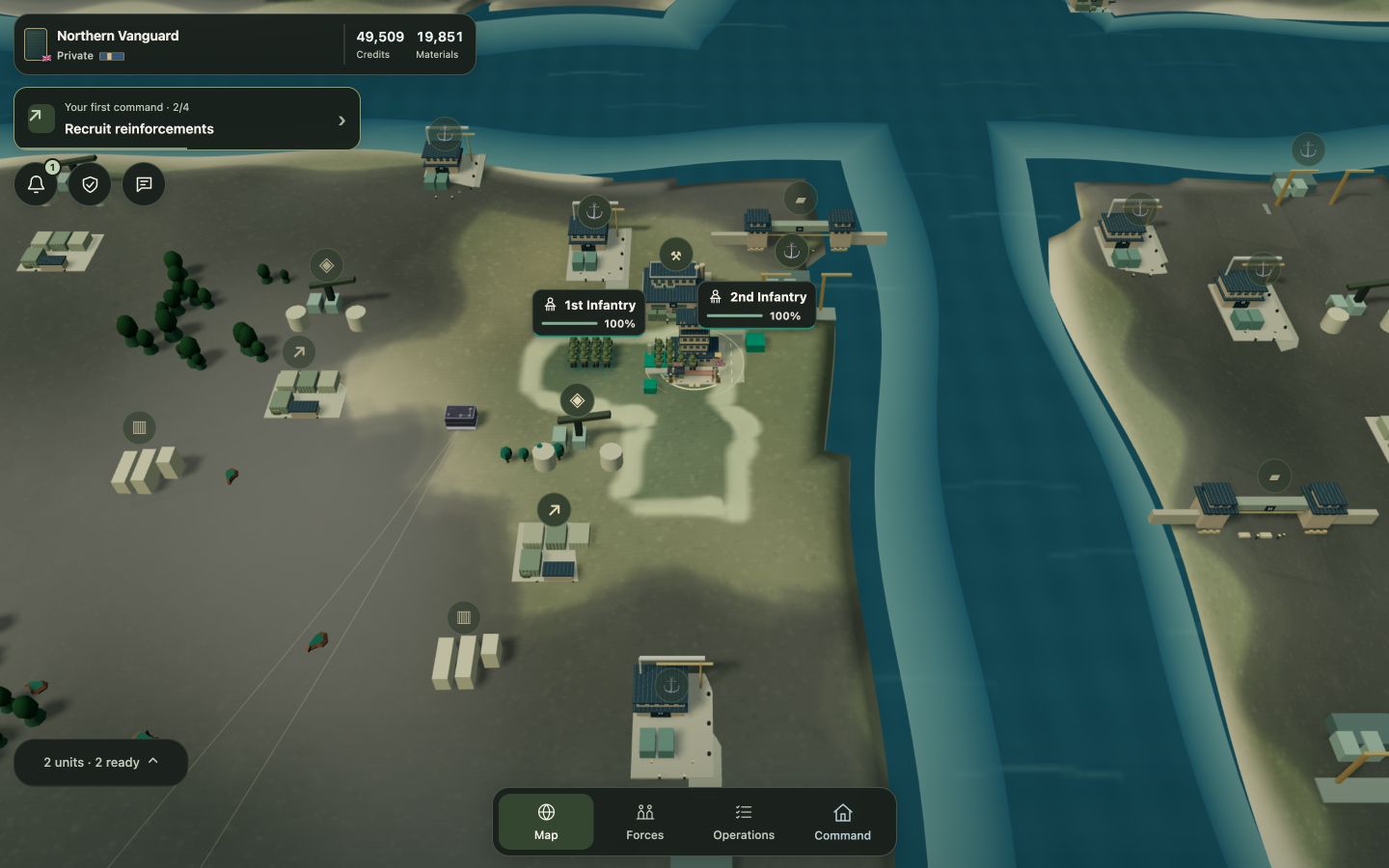
- Map: return to the world and inspect territory. Drag to pan; use the map’s zoom controls or supported pinch gesture to change the view.
- Forces: choose a unit. Use the unit search or service filter, then select it or locate it on the map. Recruit & upgrade opens force management.
- Operations: review your campaign, objectives, journeys and planning tools.
- Command: use your recommended next step or choose Expand, Strengthen or Help allies. Expand “Explore all commands” to browse or search the full directory.
- Tap your nation and rank at the top to open your military career. Tap your resources to inspect the economy.
- Updates opens the activity inbox. Alliance chat opens your private conversations.
Select, then choose a destination
Select your unit first, then tap the territory you want it to move to or attack. A route and order preview explain whether the move is allowed. Opening a panel does not issue an attack; review and confirmation are separate steps.
Several units in one place
Use the formation picker to switch units or select a group. Check which formations are selected before ordering. Your units remain individually visible in Forces even when they share a map location.
Moving troops & attacking
An attack is a movement order into hostile territory. Ground troops secure land; aircraft and ships provide their own forms of support.
- Choose a ready unit or group. Check its strength, ammunition, fuel and current task.
- Select an eligible destination. Ground routes must obey territory connections and access rules; distant land cannot be reached simply by tapping it.
- Read the forecast, travel time and any warning. If the game blocks the route, follow the stated requirement rather than repeating the same order.
- Choose an available tactical approach, review the order and confirm.
- Use Journeys to follow movement. Once combat starts, inspect the battle and wait for its result.
Orders already underway
A moving or fighting unit may not be eligible for another action. Check its status first. Halting, withdrawing and changing plans can have consequences; read the confirmation before committing.
A safe first attack
Start close to home with rested ground troops against a manageable unclaimed territory. Keep enough resources for replenishment afterwards. Build a supply route as you expand instead of leaving exhausted units isolated.
Battle forecasts, tactics & results
Numbers matter, but so do readiness, terrain, defence, research and the mix of units you bring.
- The forecast estimates the balance for the selected force and destination. Unrevealed enemy information can limit its certainty.
- Compare tactical approaches. The preview describes their purpose and shows how a different choice changes the forecast relative to Advance.
- Defending positions, fortifications, terrain, specialist capabilities and service or country bonuses can affect the fight.
- The battle report records victory or defeat, casualties, experience and notable factors. Read it before repeating a costly attack.
- A victory does not make every participant eligible for career credit: meaningful enemy strength and contribution rules apply. Repeated farming is restricted.
If the result surprises you
Look at depleted ammunition or fuel, supporting enemies, fortifications and whether your troops had the right role. Improve one weak point, scout the target and reinforce before trying again. A forecast is not a guarantee.
Headquarters, bases & buildings
Your capital has a country-specific headquarters identity, such as the War Office or Pentagon. Other owned buildable territories can also be entered as bases.
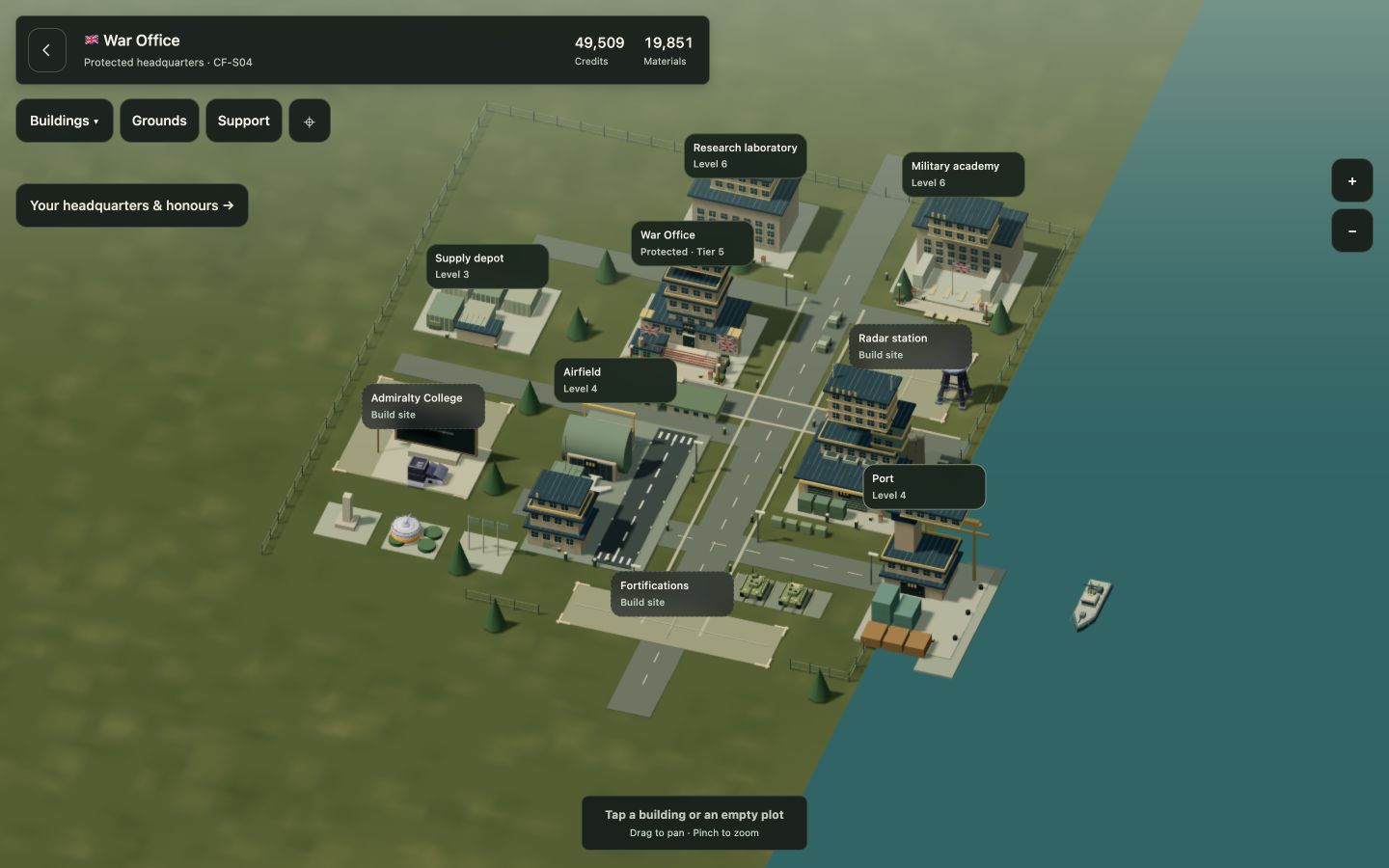
- Tap your headquarters or another owned base, then enter its base view.
- Select a building or construction position to inspect its purpose, current level, next effect, cost and requirements.
- Choose the build or upgrade action, review the order and confirm.
- Check the construction queue. The improvement takes effect when the timer finishes.
What to build first
- Barracks & academy supports recruitment and training.
- Factories develop the economy and material capacity.
- Research facilities support your technology programme.
- Supply buildings help sustain forces. Airfields and ports provide the facilities required for air and naval recruitment.
- Headquarters tiers unlock deeper development. If another upgrade is blocked by an HQ requirement, develop headquarters first.
Build for the location
A coastal base is useful for fleets and crossings; an inland supply position may support an advance. Check local prerequisites and available construction before investing. Higher building levels and HQ tiers take longer and require more developed capabilities.
Credits, materials & queues
Credits and materials pay for recruitment, research, construction and many operational actions.
- Owned territory and developed sites contribute to your income. Inspect strategic locations and your economy screen for their benefits.
- Storage limits can cap what you accumulate. Develop the relevant economy and storage capabilities if income is being wasted.
- Training, research and construction use timed queues with their own capacity and eligibility rules. A busy queue is a reason to plan another task, not place the same order repeatedly.
- Quoted costs, timers and prerequisites on the current review screen are authoritative. They can vary with progression, equipment and the selected base.
- Leave a reserve for ammunition, fuel and replacement troops. Spending everything on a new building can stall an otherwise successful advance.
Repeating work
Recruitment offers a review of your previous recruitment order. Research offers a shortcut back into your last completed programme. These are shortcuts to a reviewed action; they do not automatically spend resources or run an endless queue.
Recruitment & unit roles
Build a force for the job you need it to do. More expensive units are not automatically the best choice for every target.
- Open Forces, then Recruit & upgrade and the Recruit view.
- Check the base named at the top. Choose a service filter or browse available unit types.
- Read the unit’s role, research requirement, facility requirement, cost and training time.
- Review recruitment and confirm. The formation appears when training finishes.
- Infantry and other eligible ground formations capture and hold territory.
- Armour and artillery provide different ground combat strengths; read their descriptions and forecasts before committing.
- Reconnaissance helps reveal targets. Engineers and other specialists have situational roles.
- Fighters, bombers and transports fulfil distinct air roles. Air recruitment requires appropriate facilities or a suitable strategic base.
- Surface warships, submarines and supply ships fulfil distinct naval roles. Naval recruitment needs suitable coastal facilities.
- The supply limit and active training queues restrict force growth. Logistics research, equipment and development offer ways forward.
Names & experience
Units receive readable formation names. Their service record tracks experience and honours. Refitting, upgrading and keeping experienced formations supplied can be more useful than continually replacing them.
Research & long-term development
Research improves your capabilities and unlocks units. It also contributes to military career requirements.
- Open Command → Explore all commands → Research.
- Expand Army doctrine, Defence systems, Air command, Naval command or Logistics. Specialist and national programmes appear in their own section.
- Check the current effect, next level, capability path, cost, timer and any HQ or facility requirement.
- Review the order and confirm. Research continues in the background; a level counts only once it is complete.
Choose a purpose
Research toward a specific unit, operational ability or promotion requirement. A higher number in every branch is not the only route to progress. If the research team is busy, let the current programme finish and spend the session on a different task.
Country-specific progress
Some capabilities and equipment reflect your selected nation. Your chosen service and country also provide small themed combat modifiers. Inspect your career and programme screens for the exact current effects.
Ammunition, fuel & readiness
A unit can have full strength and still be unready to fight. Ammunition and fuel are separate from its health.
- Open the unit’s readiness details or choose Strengthen in Command.
- Check strength, morale, ammunition, fuel and fatigue, plus the supply connection shown for its location.
- For direct replenishment, bring the unit to one of your own territories and let it finish moving, fighting or refitting.
- Choose the replenishment action, review the total cost and confirm. For several units, use “Select depleted eligible units” in the bulk resupply tool.
A unit is at 0% ammunition
Changing its equipment variant will not solve the supply problem. Replenish the idle unit in owned territory, restore a viable supply connection, or use the appropriate supply-delivery tools for an overseas force. The readiness screen explains what is missing.
Supply routes & deliveries
Resting at connected friendly bases can restore readiness naturally. Isolated or overseas forces need more planning. Supply ships carry deliveries to eligible destinations; escorts reduce the risk of interception. Check the receiving force and destination before paying for a delivery.
Equipment refits
Refitting changes a unit’s equipment role. Choose a different variant, use an idle unit at an owned base and check the cost. Choosing the variant already fitted is not a new upgrade.
Moving troops across the sea
A ground formation cannot march across water. Use the sea-crossing planner to bring ground troops with a suitable fleet.
- Research Naval command to the required level. The sea-crossing planner points to Naval command level 3 when that is the missing prerequisite.
- Choose a suitable coastal staging base and assemble the ground formations and surface escorts the planner accepts. Recruit the missing force types if necessary.
- Open the sea-crossing tool from your movement options or find it in Command. Set the staging base and destination.
- Select the ground troops, surface escorts and any optional air support. Check the route, capacity, assembly requirements and cost.
- If troops are at different bases, follow the assembly instructions. Review and confirm the crossing only when the plan is eligible.
- Track the journey. A hostile shore can start a landing battle; surviving ground troops are needed to secure territory.
Why a submarine is not enough
Submarines have a naval combat role. They do not replace the ground troops and eligible surface escort required by a landing plan. Use the formations listed by the crossing tool.
After the landing
A beachhead needs supply, reinforcements and a defensible route. Establish a useful base and keep the fleet’s support plan in mind before pushing far inland.
Tactical airlift & helicopters
A tactical airlift moves light troops between your owned territories. It is a transport mission, not an attack on an enemy base.
- Research Air command level 8 and recruit a Transport wing at a suitable air facility.
- At the same origin as the transport, station ready Infantry, Engineers or Reconnaissance.
- Choose the transport’s “Plan tactical airlift” option, or open the airlift tool from Command.
- Select eligible cargo and a different owned destination within the displayed range. A Transport wing has a 220 km range in this tool; helicopter limits depend on the aircraft.
- Check readiness and resources. The tactical-airlift review shows 60 credits and 20 materials. Confirm and let the transport and cargo arrive.
Completing the campaign objective
“Deploy a transport wing” and “Complete a tactical airlift” are separate tasks. Recruiting the aircraft completes only the first. Launch an eligible cargo mission and wait for its completion to satisfy the airlift objective.
Helicopter transport
Transport helicopters have their own unlock, readiness, capacity and range requirements. Use the helicopter or airlift planner to see eligible troops and destinations. Do not assume a helicopter can carry every ground unit or reach every base.
Drones, helicopters & counterplay
Each service has specialist aviation options. They are tools for particular situations rather than a replacement for the rest of your force.
- Research and HQ requirements gate specialist aircraft and drone types. Look in the recruitment view and aviation command for the exact unlocks.
- Read a platform’s mission: reconnaissance, strike, transport, electronic warfare and maritime roles are different capabilities.
- Mission range, ammunition, fuel, cooldown and launch position limit what a platform can do.
- Use reconnaissance and suitable counters to protect against specialist attacks. Air defence and other supporting capabilities matter.
- Eligible naval aviation may need an appropriate host ship or facility. Read the aircraft’s readiness message before issuing a mission.
A balanced force
Keep ground troops to hold territory, use scouting to identify the problem and choose support that solves it. Specialised aircraft are most useful when you can supply and protect them.
Joining an alliance & working together
An alliance gives you people to plan with, shared tools and opportunities to contribute beyond your own expansion.
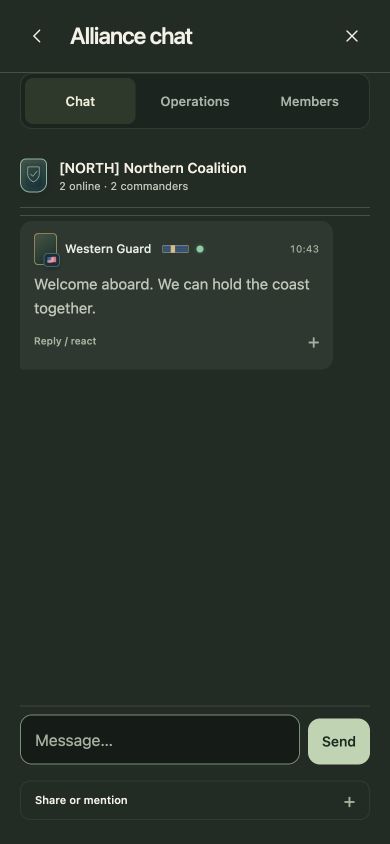
- Open Alliances from Command. Browse recruitment profiles and read their language, play style and expectations.
- Apply to an open alliance, accept an invitation or use a valid invitation link. You can also found an alliance if eligible.
- Open Chat and introduce your command. Ask where help is useful before moving troops into somebody else’s plan.
- Check Operations for a useful first contribution, current support requests or joint plans.
Chat that helps the team
- Share a territory reference or attach its location instead of saying “over there”.
- State which units you can bring, where they are and when you can play.
- Check current plans before committing. An expired operation is not a live instruction.
- The member list shows alliance duties and contribution history. Military rank is separate from permission to manage the alliance.
Who is online?
Members show Online or Offline; chat includes an online count and status dots beside authors. Status can take about a minute to clear after a player leaves. Alliance online status can be set to Appear offline in preferences. Your friends activity setting is separate.
Joint operations, support & alliance rankings
Good coordination means agreeing on a plan, assembling the right forces and completing a useful contribution.
- Joint operations name an objective, timing and participating roles. Joining a plan does not mean every possible unit order has already been issued; read your assigned role and any assembly instructions.
- Support requests let commanders ask for particular help. Accept a task you can actually deliver and follow its completion requirements.
- Alliance projects and shared facilities provide another way to contribute. Check the quoted contribution and effect.
- Alliance duties grant access to specific tools. Leaders, officers and coordinators have different responsibilities, while every player retains command of their own units.
- World rankings include alliances. Compare weekly progress, overall strength, territory, military power and cooperation. Military career rank is a separate system.
Recognition is earned
Cooperation points come from verified completions. Repeated support between the same pair and daily contribution totals have limits to prevent farming. Chatting and moving reserves around do not create unlimited ranking points.
Military ranks & promotions
Your military career follows your selected country and service. Army, Air Force and Navy rank titles differ.
- Tap your rank beside the nation name.
- Read the next rank and its requirements: XP, headquarters development, research and qualifying victories can all matter.
- Choose one unmet requirement and use its linked action to work toward it.
- Complete the work. Queued research and construction do not count until finished.
- Return to the career screen to check eligibility. Promotion celebrations mark a rank you have earned.
Why XP alone may not promote you
Higher ranks are deliberately demanding. Enough XP does not bypass HQ, research or victory gates. A displayed level or world score is also not your military rank. Read the checklist for your particular career.
Changing career
Country or service changes use the game’s guarded career-transfer process. Check the confirmation and current conditions before committing. Your chosen service also provides a small themed capability bonus; it does not lock you out of commanding the other services.
Medals, commendations & milestones
Service honours recognise achievements between promotions. They are visible, cosmetic awards and add no combat, resource or XP bonus.
- First Victory: a qualifying first battle victory.
- Expeditionary: completed base construction outside your home region.
- Defence: a qualifying defence against greater unmodified attacking strength.
- Allied Service: three verified contributions to allied operations or support.
- Logistics: three useful supply deliveries to depleted allied formations.
- Combined Arms: a qualifying victory using contributing ground forces with aircraft or ships.
- Recovery: rebuild after a significant defeat, then return to qualifying victory.
- Campaign: complete a campaign chapter.
Displaying your honours
Open Medals & honours from Command or your career. Feature up to three medals on your public service record and wear one ribbon beside your name and rank, including alliance chat. The collection shows locked requirements, progress and earned citations.
Unit and officer recognition
Applicable awards appear on the formations that took part and their assigned officer. Historical recognition is limited to retained records that prove an achievement; missing history is not invented.
Officers & veteran formations
An assigned officer should be part of a formation’s identity, with a visible insignia and a service record.
- Open the officer corps from Command, or choose Assign an officer on an eligible unit.
- Inspect the officer’s service, specialisation, skills, rank and current assignment.
- Assign the officer to the unit you want them to lead. Read any conditions before confirming.
- Use the unit’s officer indicator to revisit the officer’s career and development.
Separate careers
Officers progress through their own service and experience rules. Their rank is separate from your player rank. Assignments and qualifying service matter; simply owning an officer does not make every battle part of their record.
Preserve experience
Veterancy and unit service records reward keeping formations in action. Replenish and support experienced units rather than treating every damaged formation as disposable. Cosmetic honours document service without providing an extra medal combat bonus.
Campaign, objectives & optional systems
The campaign is a route through the game’s capabilities. It is useful guidance, not a requirement to explore every menu at once.
- Open Operations to see your current chapter, completed tasks and remaining requirements.
- Use an objective’s action to open the relevant tool. Requirements can ask for a completed mission, not merely the unit or building needed to begin it.
- Claim a reward when the interface offers it. Read the chapter progress rather than assuming the action has counted.
- Field missions and regional events offer other goals. Check the deadline, target and completion condition.
- Task forces, standing orders, fleet tools, diplomacy, intelligence and trading are advanced options. Use the Command search to find them when a specific problem makes them useful.
Progress at your own pace
A productive session can be a small one: one successful advance, a completed research level, a resupplied fleet or helping an ally. Your next promotion does not need to be the only thing worth working toward.
Recovering after a defeat
A setback is a reason to regroup. Your protected homeland gives you somewhere to rebuild.
- Read the battle report and find the main cause of the loss.
- Check surviving formations and bring depleted units back to suitable owned territory.
- Replenish ammunition and fuel; recruit replacements within your supply and queue limits.
- Use any rebuilding assistance shown as available to your nation. It has eligibility rules, so it is not always offered.
- Choose an achievable nearby objective or a useful alliance contribution before attempting another major attack.
Protect the next advance
Keep a resource reserve, maintain supply links and scout strong targets. Share the situation with your alliance: a convoy or supporting formation may be more valuable than another rushed attack.
Task forces & multi-step plans
Organisation tools help when you have more formations than you want to manage one by one.
Task forces & rally
Find Task forces & rally in Command. Save a named group of your own formations and set a rally point when useful. Review which units are still eligible before sending a group order; a saved name does not remove travel, readiness or ownership restrictions.
Multi-step plans
- Open the multi-step plan tool and choose ready formations that are not already committed to another active sequence.
- Name the plan and add up to six supported steps: movement between friendly bases, replenishment, hold or defend.
- Review the route and resource requirements before confirming. Each step is checked again before it runs.
- If the plan pauses, read its reason and resolve the problem before choosing Review & resume.
Cancelling a plan
Cancel remaining steps prevents later actions. It does not automatically halt movement already underway. Use the unit’s Halt control if you also need to stop its current journey. A sequence is not permission to attack any arbitrary destination.
Agreements, territory exchange & trade
The Agreements & trade screen lets nations negotiate specific terms. An offer is not active until it has been accepted.
- Find Agreements & trade in Command. Inspect pending and current agreements before proposing something new.
- Choose the other nation, agreement type, duration and any territories or access type involved.
- Review the exact terms. The other nation must accept those terms; a message in chat alone is not an agreement.
- Check the resulting agreement state and expiry. Accepted ceasefires remain binding until they expire.
Agreement types
The tools include ceasefires, demilitarised zones, infrastructure access and territory exchanges. Eligible territories and rules differ by agreement. Protected or reserved territory is not a freely tradable asset.
The trade market
Material offers use escrow and port-to-port shipments. Choose a valid receiving port before reviewing a purchase. Materials and credits remain committed while the shipment travels, and hostile submarines can intercept part of a shipment. An open sale can be cancelled through its refund action; inspect the actual offer state before acting.
Neutral harbours
The neutral-harbour trade tool has its own location, unit and price conditions. Use its displayed requirements rather than assuming every coastal territory is a trading post.
Preferences, nation name & support
Adjust the interface around how you play, and keep your account details separate from your public nation identity.
- Your preferences includes text size, control position, ownership patterns, start screen, sound and notification choices.
- Set Alliance online status to Appear offline if you do not want your active status visible to the alliance. Friends activity sharing is a separate preference.
- Renaming your nation costs credits and materials based on your territory administration. Review the quoted rename cost before confirming. It does not change your login username.
- Orders & spending helps you review recent commitments. Updates keeps activity and important notifications together.
- Support & feedback is available from Command. Describe the screen, action and error message when reporting a problem. Never include passwords or recovery codes.
On a phone
Use a recent browser and a stable connection. The interface supports mobile layouts and reduced-motion preferences. On a slower device, reduce the game’s graphics quality and keep the map effects modest. Closing a panel returns you to the game; your issued orders continue on the server.
When something will not work
The game checks eligibility before spending resources. Start with the explanation on the order screen.
- Cannot train: check research, the selected base, required port or airfield, available credits/materials, supply capacity and the active training queues.
- Cannot research: check HQ requirements, costs, maximum level and whether another programme is using the research team.
- Cannot move: check unit status, route connections, access and whether a sea crossing or airlift is needed.
- Cannot replenish: use a ready, idle unit in your own territory; complete its current task first.
- Cannot refit: select a different equipment variant and use an eligible unit at an owned base.
- Airlift has no cargo: assemble ready Infantry, Engineers or Reconnaissance at the transport’s exact origin.
- Airlift has no destination: choose another owned territory in range. It cannot take an enemy base.
- An order seems stuck after a connection failure: reconnect and check the current state before issuing another order. Use the supplied retry control if an order is awaiting confirmation.
- Progress appears missing on another device: check the login and world. A separate account has a separate nation.
Performance & accessibility
Preferences include text size, control position, ownership patterns, sound and notifications. If the map feels heavy on your device, use the available graphics controls and reduce visual quality. Keep the browser current. For account restrictions or a persistent problem, open support from the game.
You have your orders.
Take one manageable step. See what changes. Build from there.
Play Frontline Nations ↗